Skip to content


Top 5: best Android applications

I’ve been using my HTC Hero Android phone for about 2 months now,
so it is time to make a round-up of my best Android applications so far.
Android Market contains about 18000 applications now.

Barcode Scanner

This application is just a simple barcode scanner, it scans a lot of barcode types, including QR-codes (which appear in this post).
These codes can contain a lot of info, mostly URL’s. You find them more and more in advertising campaigns.
This application can also be integrated in other applications, to pass barcode values to them.
The interface is simple and user friendly, enabling you to quickly scan your barcodes.

Shazam

This application enables you to identify the music that is played in your environment.
The iPhone version of this application was already a success, now there is an Android version of this amazing app.
On the iPhone, you have to pay for it, but the Android version is still free.
You can store the recognized songs as “tags” for later use.

Gmote

This application offers a lot of features:
Play movies and music files on your pc.
Play movies and music from your pc on your phone
Control the desktop’s mouse with your Android phone’s touchscreen.
Control keyboard input with your phone’s touch keyboard.
All you have to do is install the Gmote Server on your pc and add your favourite music or movie folders.
In the settings of the server application, you specify a password, which has to be used on the phone application.
The good thing about the application is that it uses Wifi to connect to Gmote server, so you can control your pc from a very long distance.

Swift

There are already a lot of Twitter applications in Android market, but the big killer app is not there yet, if you asked me.
For the moment, I am using Swift om my HTC Hero. The UI could be better, but the application offers the functionality I expect from a Twitter client and above all: it works very smoothly.
You can scroll endlessly through your Twitter timeline, but also the “Jump to now” feature is interesting.
Notifications of tweets, mentions and direct messages can be configured easily.
You can also look up profiles and search on Twitter. The application enables you to save your Twitter searches.
It is possible to add images and videos to your post, choosing the upload service fits best.
The application contains its own built-in browser, so you can navigate fast from links in tweets and back.

EStrongs File Explorer

A File Explorer can’t be missed on an Android phone.
ES File Explorer enables you to explore all folders on your phone’s sd card and you can open, copy and delete files.
The big difference with the most other applications is that you can also explore Windows shares with this one.
It is also possible to copy files between Windows shares and the sd card.

Posted in Android.

Tagged with .


Teched 09: my report

After being for the first time at a Micrsoft TechEd event, I’m home again and it is time for some kind of report.

Brandenburger Tor

“Ich bin ein Berliner”

It must be one of the biggest cities in Europe and I must say I was impressed.
I have tried to visit a lot of things during my week in Berlin, but I didn’t manage to view them all.
Being there at the festival of the fall of the Berlin wall was really exciting, although my expectations for the celebrations were bigger.
Although it was raining a lot I was happy to be there. Apart from this celebrations, Berlin just looks like an American city:
big avenues with large buildings and trees on both sides. Saying that you can only find some bratwurst there is definitely wrong,
because I saw more sushi and other exotic food then the typical German food. Berlin is a world city!

The 5 most important technologies for developers if you asked me

Some topics appear more in sessions than others, indicating the importance for Microsoft:

  1. Silverlight:This is definitely the most important TechEd topic, covering a lot of sessions,
    it is clear that Microsoft invests a lot in Silverlight and we haven’t seen the end of the possibilities in this technology.
    (Unfortunately no announcements on Silverlight 4)
  2. Visual Studio Team System 2010: When Team Foundation Server 2008 was to expensive for a lot of companies,
    Microsoft will now deliver their Team Foundation Server 2010 directly in Team System 2010 for only $500.
    Team System 2010 will be a lot more than just a source control tool, also project management and agile development will be integrated well in the new environment.
  3. Sharepoint 2010: Although I didn’t attend sessions on Sharepoint, this technology just seems to be integrated into a whole bunch of systems.
    I think Sharepoint will definitely increase its popularity.
  4. Agile development:  VS Team System 2010 now better supports agile development, a lot of companies may finally put a step into this development technique.
  5. ASP.NET (MVC): Not only Silverlight, but also ASP.NET stays important for Microsoft. The line between “regular” ASP.NET and ASP.NET MVC seems thinner.

My speaker top 5

  1. Jeff Prosise: Nobody can show Silverlight features like he does :-)
  2. Donald Farmer: The BI-guy from Microsoft is just too funny.
  3. Stephen Walther: His ASP.NET talks were really clear and interesting.
  4. Tim Heuer: Another Silverlight guy, really interesting talks!
  5. Shawn Wildermuth: It must be said, I’ve seen a lot of Silverlight talks, but the sessions from Shawn were fun.

My session top 5

  1. The New Dynamics of Business Intelligence: bringing boring BI stuff like this, I think not a lot of people can do it.
  2. Tips and Tricks for Building High Performance Web Applications and Sites: really interesting session on general performance of websites.
  3. Can You Keep a Secret? The Biggest Little-Known Features in Microsoft Silverlight: a lot of interesting features I’ve never heard of.
  4. What’s New in Microsoft ASP.NET Model-View-Controller: clear explanation of the new features in MVC.
  5. The Windows Azure Platform: When and Why to use it? :  just a general approach to Windows Azure.

Session recaps (not all session recaps are complete)

Pros

  • The organization of the event was pretty good, I have never had the feeling that more than 7000 people  were gathered there.
  • Some really great sessions and ditto speakers.
  • Nice exhibition rooms for never getting bored in between the sessions (grabbed some gadgets and t-shirts)
  • Networking possibilities were great, with special thanks to Microsoft Belgium for their community drink.
  • Berlin rules!

Cons

  • I missed some candy for developers: no big new technologies were released (they seem to have PDC for that)
  • To much focus on IT pros: the keynote, a lot of the exhibition booths and more than half of the sessions were for IT pros.
    Maybe Microsoft should consider separate events again next year?

Pictures

Posted in ASP.NET, Silverlight, TechEd 09.


Teched 09 : Day #5

The last day on Teched Europe was a Silverlight day!

Can You Keep a Secret? The Biggest Little-Known Features in Microsoft Silverlight (Jeff Prosise)

  • In Silverlight the browser stack is used for networking by default, although it is also possible to use the client stack and bypass the browser.
    If something goes wrong in a SOAP-service: a 404 not found error will appear when using the HTTP stack.
    When using the client stack the error you sent from your SOAP-service is sent directly to your Silverlight client.
  • A FrameRateCounter is included to see the memory consumption of your GPU.
  • Use BitmapCache.RenderAtScale to make your GPU render a vector image.
  • Analytics class to know your CPU usage.
  • VisualTreeHelper class
  • Child Windows
  • Virtual Stack panel
  • NetworkInterface: is my network interface available

Not all the features from this sessions are mentioned, but you can also download the examples from his site.

Architecting Microsoft Silverlight Applications with MVVM (Shawn Wildermuth)

This was also a sessions with lot of demos, so not much to summarize.
The Model View ViewModel pattern is already known by a lot of people.
Shawn explained how to use it in Silverlight applications.

Panel Discussion: Everything You Always Wanted to Know about Microsoft Silverlight, But Were Afraid to Ask (Tim Heuer, Jeff Prosise, Oliver Scheer, Damir Tomicic, Shawn Wildermuth)

The very last session for me on Teched 09, presented by Katrien De Graeve!
The big Silverlight guys gathered to give answers.

Most important issues that came out:

  • The biggest problem seemed that not all people are able to install the Silverlight browser plug-in and Flash has a big head start for this.
    Microsoft is trying to ship the plug-in in many configurations by adding it to Windows Update, OEM-deals with HP,…
  • Silverlight will come to Windows Mobile and to Symbian (no iPhone)
  • Why not use Ajax instead of Silverlight? Ajax is very hard to manage.
  • Flash gives more power to the designers, Silverlight gives more power to the developers.

A round-up of my TechEd adventure will appear soon.

Posted in Silverlight, TechEd 09.

Tagged with .


Teched 09: Day #4

Sessions for the 4th day of Teched:

Doing It Right: Planning and Tracking Projects with Microsoft Visual Studio Team Foundation Server 2010 (Stephanie Cuthbertson)

In this session some new features from VS Team Foundataion Server 2010 for managing projects are described:


  • Planning holidays is now included.
  • For project managers, integration between different clients was added (Excel, projects,…)
    So it is easy for PM’s to reorganize items.
  • The interface to organize projects is more flexible.
  • Better support for agile projects.
  • Dependencies between tasks can be imported from MS Project (new version seems to look a lot better)
  • A dashboard in sharepoint can be created.
  • Relational reporting.
  • A process template editor is included.


Microsoft ASP.NET AJAX: Taking AJAX to the Next Level (Stephen Walther)

Again a session from Stephen Walther, so I switched to this one.
ASP.NET Ajax is now called Microsoft Ajax because Microsoft want to point out that it is not only coupled to ASP.NET.

Features in Micrsosoft Ajax:

  • Ajax CDN (Content Delivery Network): by hosting javascript-files on Micrososft Servers, performance of websites can be improved.
    Microsoft has a lot of servers all over the world, so the one that is closest to the customer can be picked then.
    Companies don’t have to host thes files (jquery, MS Ajax, ASP.NET emebedded javascript,…) themselves.
  • Microsoft Ajax minifier: for minifying your big javascript files.
    It is possible to include a build task for this that automatically calls the minifier and saves the minified javascript-file into your project structure when compiling.
  • Microsoft Ajax Library:
    • Now supports all modern browsers (even IE 6)
    • It includes a rich set of server side controls.
    • Uses MVC.
    • Features:
      • Client side Data Access: 2-way data binding!
      • Client Script Loader: auto loads all required scripts and combine them, even on demand loading is supported.
      • JQuery

Practical Web Sites: How to Build a Fast, Robust and Maintainable Web Site (Christophe Schuster)

This must be the most bad session I’ve seen on TechEd.
Christophe Schuster wants to show how they make websites in his company.
They drop a lot of tools and I don’t know if it is fun to create websites in that company.
The only positive thing I remember from this, is that they involve their customers every week.

Enhancing the Design-Time Experience for Microsoft Silverlight (Oliver Scheer)

In this session Oliver Scheer explains how developers can improve the experience for their designers
when developing Silverlight applications.

  • As a developer you should create custom controls that also render at design time.
  • You can add attributes to improve the look and feel in Blend.
  • The desgn assembly can be put in a separate dll, which can be excluded when the application is deployed.
  • He also explains behaviors in Silverlight.

Interesting project from Oliver Scheer: #20jmf

Cool Graphics, Hot Code: Ten Visual Effects to Make You the Envy of Your Peers  (Jeff Prosise)

Jeff Prosise has given a lot of cool Silverlight demos, all examples from this and other TechEd sessions can be downloaded from this site.

  • He developed a Page turn framework, which is really looking great!
  • The WritableBitmap class is a very usefull class to transform XAML into bitmaps.
  • The maginifier app he showed was also very cool!

Flexible Design (Magnus Mårtensson)

This session really made me feel stupid.
The speaker just throws a lot of code at his public, without some time to think about it.
No wonder, that there were no questions at the end of this 400 session!

Posted in ASP.NET, Silverlight, TechEd 09.

Tagged with , , , .


Teched 09: Day #2 part 2

Microsoft Tech.Ed just asked a lot of a human body, leaving mine sick at home for a whole week.
I finally found some time to complete the rest of my report on this big event.

Building high performance web apps

Tips and Tricks for Building High Performance Web Applications and Sites (Giorgio Sardo)

The title of this session covers the content completely.
The first item Giorgio Sardo wanted to show, is what determines the performance of websites in IE.
I have always thought that the big performance issues were caused by JS/DOM-operations,
but thes operations only cause 33% of the CPU-load.
67% procent is caused by Layout, Rendering, Formatting,… of a web page.

Performance tricks were divided into 5 categories:

1. CSS performance

Unused styles cause performance problems. The speaker demonstrates a  bookmarklet to find styles that are included, but not used on a web page.
It is also good to replace dependency selectors (i.e. ul li) to child selectors (ul > li)

2. Optimizing symbol resolution

  • Avoid global variables.

3. Javascript coding inefficiencies

  • Minimize DOM interaction, because this is very expensive.

IE 8 developer tools now offers a profiler to view the performance of your JavaScript,
this seems to be a very usefull tool.

4. HTTP performance

  • Use HTTP compression, this can be configured in IIS 7 (option enable static content compression).
  • Combine images in sprites, using SpriteMe.
  • Make use of Doloto: this new application from MS DevLabs creates a tree of your navigation to each single function in your application.
  • Put your javascript includes at the end of the HTML-page, so the browser can already load the page before loading the javascript files.

5. Layout Performance

  • Use Expression SuperPreview to see how pages are rendered in different browsers.
  • Another usefull tool is Fiddler.

What’s New in Microsoft ASP.NET Model-View-Controller (Stephen Walther)

Stephen Walther is an excellent speaker, showing some great demos in this session.

  • In ASP.NET MVC 2.0 there is a “better separation of concerns”: Use RenderAction to invoke a controller action.
    RenderPartial() in MVC 1.0 only generates the UI, RenderAction() invokes a controller action before rendering the UI.
  • Areas are introduced: some kind of mini-applications integrated in a big application (i.e. admin section)
  • Model validation: decorate model classes for validation (this looks very similar to .NET WCF Ria Services).
  • Templating is also improved.

Posted in TechEd 09.

Tagged with , , , , , .


Teched 09: Day #3

Just a short blog post for now about day 3 on TechEd in Berlin.
UPDATE: some more details on the sessions added!

Sessions from today:

Windows Identity Foundation Overview (Vittorio Bertocci)

Integrating application autorization with other platforms, Active Directory,… requires a lot of API’s.
Windows Identity Foundation (abbreviation WIF?) ables a developer to rely on another source for authentication.
This is called the identity provider, a Security Token Service (STS) in WIF.

If you have configured an STS, you can now add it to new or existing (ASP.NET) projects.
Therefore some ASP.NET controls are included.
WIF for Silverlight is not available (yet?).

Deep Dive in Windows Workflow Foundation 4.0 (Nuno Godinho)

  • The big challenge for WF 4.0: Business Analysts need to know what it is.
    Therefore Flow charts and unit testing was added.
    It is also possible to debug through the new flow charts.
  • Correlation is also added.
  • All workflows are stored in XAML.
  • The state machine was dropped and replaced by a flowchart.

Silverlight 3: what’s in it for developers? (Tim Heuer)

With the release of Silverlight 4 at PDC 09, the contents of this sessions are already outdated.
Silverlight developer Tim Heuer gives us a summary of new features in Silverlight 3.

  • Media enchangements: H.264 /AAC encoding.
  • GPU accelartion: you have to indicate this as a developer
  • Perspective 3D
  • Effects + Pixel shaders
  • Loacal messaging API: With this string based API, Silverlight API’s can talk to each other on the same page, on different browsers and different browser tabs.
    All you need are 2 classes: LocalMessageReceiver and LocalMessageSender.
  • Navigation
  • Reduced XAP size by taking assemblies and zip them up.

Securing Silverlight (Shwan Wildermuth)

In this interactive session Shwan Wildermuth discusses some security issues in Silverlight.
Because Silverlight 4 allows access to the public file system, some of these issues may be already outdated!
First, some threats are summarized:

  • Eavesdroppers (packet sniffers)
  • Hackers/Users (Reflector, Debuggers,…)
  • Neforious code

Silverlight is more secure than JavaScript, allthough it does not protect your data.
You can not store important data in the isolated storage, as these files are available for the user.

Data Driven ASP.NET Web Forms: Deep dive (Jeff King)

  • Today, databinding is always to objects.
    In this session Rich data models were introduced, using controls to present against a model.
  • The ASP.NET GridView now has EnablePersistedCollection as property to remember which row was previously selected.
  • Styles for sorting were added to the gridview.
  • If the data in the detailsview control were not valid before, you get the so called screen of death, displaying some ugly error message.
    Therefore you find on ASP.NET 4.0 GridView and DetailsView the EnableDynamicData() property.
  • DynamicData uses Field templates (i.e. for displaying Date/Time): haven’t we seen this on ASP.NET MVC too?
  • Dynamic datamananager: if you have a supplier id in your table, which has a relation to a supplier table, supplier names can be added in a dropdownlist, instead of chosing id’s.
  • You can also enable DynamicData support on a formview: this will result in generating dynamic controls for a whole formview, and also for page templates or even for a whole app this can be configured!
  • The QueryBlock Extender updates “where searching scenario’s” (similar than in RIA Services).
  • Jeff King also shows how in future releases of ASP.NET 4.0 a DomainDataSource will appear, where the business layer can be integrated more easily.

I ended the day at the Microsoft Belgium drink.
The atmosphere, the drinks and the people were just great!

Posted in TechEd 09.


Teched 09: Day #2 part 1

Sessions for today:

New dynamics of BIThe new dynamics of Business Intelligence (Donald Farmer)

As a developer this session doesn’t really look interesting,
but on my organization BI becomes more and more important.
I’m glad I followed this session, because Donald Farmer is a great speaker in the first place.
He can entertain his public perfectly by using metaphors or other funny stories when presenting serious content.

In this session Donald Farmer tackles the different cycles of analytics without deep diving into technical details.
He stated executives of a company always have to do ad-hoc analysis.
The number 1 technology to make this analysis has always been Excel, which can be used in different ways (leaving in the middle which one is the best way)
So the Donald Farmer’s team has made a new add-in for Excel 2010: PowerPivot (CTP will come out in a couple of weeks).
It can also be used in Sharepoint 2010.

What can you do with PowerPivot?
You can import data there from different sources (db, Excel files,…)
Instead of making queries you just can construct them making filters in Excel as you would normally do.
In a demo he shows an example of 100 billion (!) rows loaded in Excel, which can be filtered out and sorted very smoothly.
They don’t store all this rows in that single Excel file, but they work with a histogram behind the scenes.

With PowerPivot they want to join two worlds together: the structured report data and the ad-hoc desktop data.
It will also be easy to publish the ad-hoc reports that were generated with PowerPivot for example on a Sharepoint site.

Team System 2010: project management & architecture (Brian Harry)

“Farmer” (he shows some pictures of his farm first) Brian Harry presents us the improvements in Visual Studio Team System 2010
on project management and architecture.

For project management the process will be customizable:

  • Most of the reports in TFS are now based on Excel (instead of Reporting Services)
  • The underlying warehouse will be simplified.
  • There is a relational warehouse
  • Excel reporting

It will also be easier to share the project data:

  • The dashboards will be richer.
  • MOSS Support: publishing to the portal.
  • Use of web parts for Sharepoint.

Rich traceability

  • Now there is an hierarchy in the work items.
  • You can define relationships between the work-items.

Better scrum support

  • They have built scrum in: agile workbooks for scrum like planning.
  • Simplified template (probably no Conchango template needed anymore?)
  • They have hired some scrum experts at the team to offer a new set of agile guidance.

Scalable

  • TFS can be used for very small (TFS Basic) to very large projects.
  • It will also be possible to scale up (farm of TFS-servers) and in this farms it will be possible to have cross project reporting.

The architecture of Visual Studio Team System will also be improved. You can render or create a lot of diagrams: layer diagram, Use Case diagram,
Activity diagram, Component diagram, Logical class diagram, Sequence diagram,…

Source code management in Visual Studio Team System 2010 (Brian Harry, Martin Woodward)

  • There will be an improved conflict resolution in TFS 2010.
  • They have added the abillity to give permissions for merging or branching.
  • You can have private branches.
  • You can visualize the hierarchy of your branches.
  • There is a new conflicts tab in the pending changes window.
  • There are renaming improvements.
  • Rollback is only available at the command line, which I don’t understand, why haven’t they written a tool for this?

Also the versioning will be improved:

  • Files and folders are versioned by name.
  • You can have team project collections which can be administrated seperately.

At the end of the session Martin Woodward from the newly acquired Teamprise shows the abillity to use Team Explorer on Eclipse on Windows and Mac

The other 2 very interesting sessions from today will be on my blog later in part 2!

Posted in TechEd 09.


Teched 09: Day #1

Picture of keynoteMy first day in Berlin was really exciting.
The registration went quite well and after receiving my goodie bag (which has some odd colours),
I was ready for my first session ever at TechEd:

The Windows Azure Platform: When and Why to use it? (David Chapell)

I previously planned another session, but a colleague said David Chapell is a great speaker, and I can’t say he’s wrong!
The good thing about this speaker is that he is not a Microsoft employee, so his opinion is not influenced by anyone.

The first part of his session contained some technical details about Windows Azure.
I think a lot of blogs have already been written about this, so I skip this part.
The second one tries to answer the ‘Whens’ and ‘Hows’.

The first reason to consider using Windows Azure is the pricing.
Microsoft will put $0,12 on their account for 1 Virtual Machine/hour.
Other pricing can be found online.

When will you use Windows Azure?

  • For applications with a massive scale
  • If your apps should have a high reliability
  • Applications with a variable load (ticketing system,…)
  • Those apps that have a short or unknown lifetime
  • Apps that use parallel processing
  • Apps that must fail or scale fast (for start-ups)
  • Software that doesn’t fit well in the firm’s data center

There are some competitors for the Windows Azure platform:

  • Other cloud platforms: Amazon, Google AppEngine, Force,…
  • (Dedicated) hosting companies

We must not expect to see all the applications run in the cloud in a couple of time.
Azure is also not trying to bring existing applications to the cloud.
But Azure seems to be very important for Microsoft, because they want it to be reliable straight from version 1.0 (which ships next week)

Session 2: A lap around Microsoft ASP.NET 4.0 and Visual Studio 2010 (Jeff King)

This session contained a lot of demos of the new capabilities of ASP.NET 4.0 in VS 2010.
The VS editor has some nice new features :

  • Multi monitor support
  • A new editor profile: the “web development (code optimized)” profile
  • The “add reference” dialog shows on default the projects tab and the loading of .NET references is now asyncrhonous,
    so the UI doesn’t freeze anymore (this is a tiny, but nice feature though!)
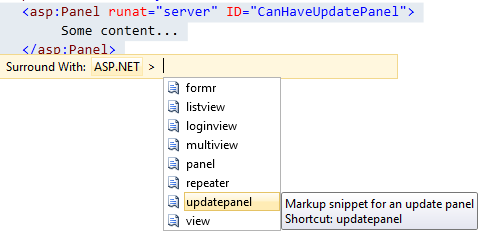
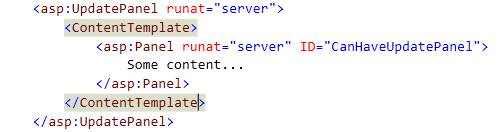
  • There are also snippets now for HTML, Javascript,… (i.e. <table + TAB +TAB adds a complete table with one row on your ASP.NET page)
  • Also a nice feature is the dynamic intellisense: if you declare a bunch of variables in a loop,
    Visual Studio 2010 just recognizes these variables on its intellisense.
  • In VS 2010 you can now specify your target framework.
  • If you type in the camel case capital letters in your markup the intellisense just fills in the whole name of a control
    (i.e. typing GVP will result in GridViewProducts)

Specific features in ASP.NET 4.0:

  • Performance should be better.
  • Better extensibility (output caching, URL encoding, external request validation)
  • the web.config is minimized (that is a great feature!)
  • the ASP.NET default template already contains authorization and styles by default
    (The default style just looks like the one on ASP.NET MVC)
  • Also there are some improvements to controls:
    • listview is improved (better templates)
    • checkboxlist: they added unordered and ordered list as output above table and flow layout
    • formview: property RenderOuterTable can be set to false, this won’t result in a nested table in the HTML output.
  • Viewstate can be enabled, disabled or inherited.
  • Controls now will have a property ClientIDMode which can be set to static, predictable, auto or inherit.
    This gives you the abillity to control the Client ID’s of the controls, especially interesting when you want to use them in javascript (good feature!)
  • The Page class now has two SEO ‘helper’ properties: MetaDescription and MetaKeyWords which enables you to dynamically change the meta tags of your page.
  • You can add routes to pages in the Global.asax

Developer General Session (Jason Zander)

This session took place in the keynote hall and eventually this just seems to be the keynote for developers (more on that later in this post)
Jason Zander presents us with Visual Studio 2010.
He brought some fresh news to this session, declaring that MS have Acquired Teamprise.
This is great news for companies with mixed environments. They could now put all their code, including Java and other technologies, in TFS 2010.

There were also some other partners  presenting their integrated technology for VS 2010:
Cobol integration (yes it still exists and still looks like crap) seems to be quite easy now
and also Oracle finds it way in the database projects of Visual Studio.

End of the keynote

End of the keynote

 Keynote

(Stephen Elop)

The keynote was really a disappointment.
First of all I just felt in an Americaon teleshopping commercial (overacting included!)

Secondly not a single technology for developers was discussed, so they better call it the IT professional keynote!
Halve of the crowd just left the keynote session before it has ended.

Oh yeah, what technology did they discuss in the keynote?
I can only remember 2 things: Exchange 2010 and Windows Server 2008 R2.

And between those presentations they want to mark the “New Efficiency” keyword.
Microsoft really wants their products to work smoothly these days.

So, this was Day 1 and I’m looking forward to the next day!
Hopefully it will not rain that much as today: allthough the celebrations off the Berlin wall were historically important,
I just felt historically wet and cold!

Some more pics may appear in this post, but now I really need to catch some sleep!

Posted in ASP.NET, TechEd 09.

Tagged with , , , , .


ASP.NET Ajax AsyncFileUpload: some thoughts

The latest release of the ASP.NET Ajax Control Toolkit (30930) now contains an AsyncFileUpload control.
The big advantage of this control is that you can upload files without a full page refresh (as in the original FileUpload control), showing the users direct feedback on the page.

I wanted to use the new control to let our users upload a CSV-file on an ASP.NET page.
If the file was in a correct format, it is read and stored in a list of objects, which will be bound to an ASP.NET GridView on screen.
The GridView control is included in an UpdatePanel to avoid a refresh of the whole page.

The AsyncFileUpload control has an UploadedCompleted event at server side where you can fetch the file contents.
So it looked quite simple to accomplish this behavior on my page:

ASP.NET mark-up:


Code-behind (VB.NET):

    Private Sub AsynCFileUpload1_UploadedComplete(ByVal sender As Object, ByVal e As AjaxControlToolkit.AsyncFileUploadEventArgs) Handles AsynCFileUpload1.UploadedComplete
        If e.state = AjaxControlToolkit.AsyncFileUploadState.Success Then
            ' Do some parsing operations
            ' ...
            Me.grdMetingen.DataSource = resultList
            Me.grdMetingen.DataBind()          

        End If
    End Sub

Instead of loading the data in the ASP.NET gridview, nothing happened.
Allthough, when debugging, the event of the AsyncFileUpload is definitely hit.

So what went wrong then?
The AsyncFileUpload control internally uses an iframe to post its files to the server.
This means, nothing on the current page is post backed when uploading a file, but server side code is triggered anyway.
So what you need to do is a refresh of the UpdatePanel which contains the bound GridView with the resulting data in it.
Apart from a server side event, the component also has an uploadComplete event at client side.

I use the javascript function below to cause a postback of my update panel,
after that, my page works like expected.

function uploadComplete() {
      //Postback is necessary for asyncfileupload
      __doPostBack('idOfYourUpdatePanel', '');
}

So why hasn’t Microsoft’s ASP.NET team thought about this behavior?
It would have been really nice to have a property in which you can specify the id of an UpdatePanel to update when the upload process of the control has completed.

Secondly, I think the default appearance of the uploadcontrol really sucks!
Why didn’t they include some more styling options and why isn’t the text on that ugly button editable?

I hope we can consider this first version of the control as a basic version which will be much more improved on the next release of the Ajax Control Toolkit.
The AsyncFileUpload control definitely is a good idea, but it just isn’t mature enough.

Posted in .NET, ASP.NET.

Tagged with , , .


This is it: my TechEd Europe session schedule

After making some really hard choices, I finally finished my schedule for Microsoft Tech.Ed Europe 2009.
As a developer I’ve obviously chosen a lot of sessions in the development track.
This schedule shouldn’t be definitive, but it is a good draft.

Monday, 9 November

9:00 – 10:15
DEV305 ADO.NET Entity Framework in Microsoft Visual Studio 2010 and Microsoft .NET Framework 4

Helsinki – Hall 7-2a

10:45 – 12:00
WIA204 A Lap around Microsoft ASP.NET 4 and Microsoft Visual Studio 2010

Helsinki – Hall 7-2a

13:30 – 14:45
DEV-GEN Developer General Session – Visual Studio 2010: New Challenges, New Solutions

Keynote Hall 25

15:30 – 17:00
Keynote Session

Keynote Hall 25

Tuesday, 10 November

9:00 – 10:15
DAT203 The New Dynamics of Business Intelligence with Microsoft Project Code Name “Gemini”

London 3 – Hall 7-1b

10:45 – 12:00
DEV205 Microsoft Visual Studio Team System 2010: A Lap around the New Project Management, Architecture, and Governance Capabilities

Helsinki – Hall 7-2a

12:20 – 13:00
BOF07 Microsoft Communities around the World

Interactive Theatre 3 – Blue

13:30 – 14:45
DEV303 Source Code Management with Microsoft Visual Studio Team Foundation Server 2010

Budapest – Hall 7-2b

15:15 – 16:30
DEV01-IS An Agile Talk on Agility

Interactive Theatre 2 – Orange

17:00 – 18:15
DEV04-IS Pumping Iron: Dynamic Languages on the Microsoft .NET Framework

Interactive Theatre 2 – Orange

18:50 – 20:00
Welcome Reception

Wednesday, 11 November

9:00 – 10:15
SIA305 Windows Identity Foundation Overview

New York 3 – Hall 7-1a

10:45 – 12:00
INT308 Deep Dive in Windows Workflow Foundation 4.0

London 3 – Hall 7-1b

12:20 – 13:00
DEV01-DEMO Microsoft Visual Studio Team System 2010 Team Foundation Server: Become Productive in 30 Minutes

Dublin – Hall 7-2c

13:30 – 14:45
DEV06-IS Microsoft Visual Studio Team System “Unplugged”

Interactive Theatre 2 – Orange

15:45 – 17:00
WIA03-IS Securing Microsoft Silverlight: Knowing the Enemy

Interactive Theatre 2 – Orange

17:30 – 18:45
DEV207 How Microsoft Does It: Internal Use of Team Foundation Server and Microsoft Visual Studio Team System for Software Development

Budapest – Hall 7-2b

Thursday, 12 November

9:00 – 10:15
DEV202 Doing It Right: Planning and Tracking Projects with Microsoft Visual Studio Team Foundation Server 2010

Helsinki – Hall 7-2a

10:45 – 12:00
DEV402 Dynamic in Microsoft Visual C# 4.0: The Why’s and How’s

Helsinki – Hall 7-2a

12:20 – 13:00
BOF12 Practical Web Sites: How to Build a Fast, Robust and Maintainable Web Site

Interactive Theatre 5 – Yellow

13:30 – 14:45
DEV313 Architecture Discovery and Validation with Visual Studio 2010

Paris 2 – Hall 7-1c

15:15 – 16:30
DEV03-IS Using Microsoft Visual C# 4.0 and Visual Basic 2010 Interop Features with Microsoft Silverlight, Office, and Python

Interactive Theatre 2 – Orange

17:00 – 18:15
ARC401 Flexible Design

Budapest – Hall 7-2b

Friday, 13 November

9:00 – 10:15
WIA308 Can You Keep a Secret? The Biggest Little-Known Features in Microsoft Silverlight

Dublin – Hall 7-2c

10:45 – 12:00
DEV312 Using and Extending Microsoft Visual Studio 2010 Architecture and Modeling Tools

Europa 2 – Hall 7-3b

13:00 – 14:15
WIA01-IS Panel Discussion: Everything You Always Wanted to Know about Microsoft Silverlight, But Were Afraid to Ask

Interactive Theatre 2 – Orange

Posted in TechEd 09.

Tagged with , .


Better Tag Cloud